
Snapiro comes in a light look by default. You can switch to dark, or let the app follow your phone, under Me › Appearance.
Steps
- Tap the Me tab.
- Find Appearance near the top.
- Tap Light, Dark or Auto.
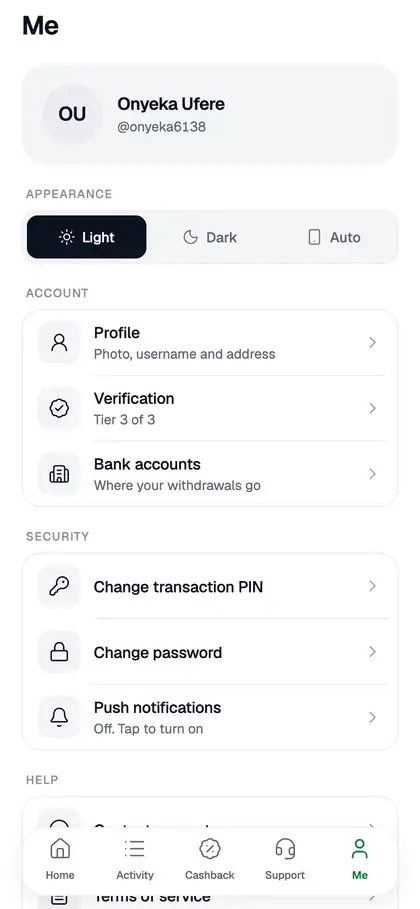
The change happens straight away. You don’t need to restart the app.
What each option does
- Light: a white background. This is the default.
- Dark: a dark background that’s easier on the eyes at night.
- Auto: follows your phone’s own light or dark setting, so it switches when your phone does.
Good to know
Receipts always use the light style, even in dark mode, so they look the same when you view or share them.
