
 Login and Account
 2FA & Security
 KYC
KYC Trade
Trade Transaction
 Wallet
Here’s How to Add Your Bank Account on the Snapiro Mobile App
To get started, make sure you are already logged in to your Snapiro account on the mobile app. Once you are inside your account, look toward the bottom right corner of your screen and locate the Settings icon.
When you tap on the Settings button, the app will take you to a new page. On this page, you will see the “Account Settings” option. Tap on it, and you will be directed to another page where you can manage different parts of your account.
On this new page, look for the “Bank Details” button. Tap on it, and the app will bring you to a page where you will find the “Add New Bank” button. Simply tap on this button to proceed to the next step.
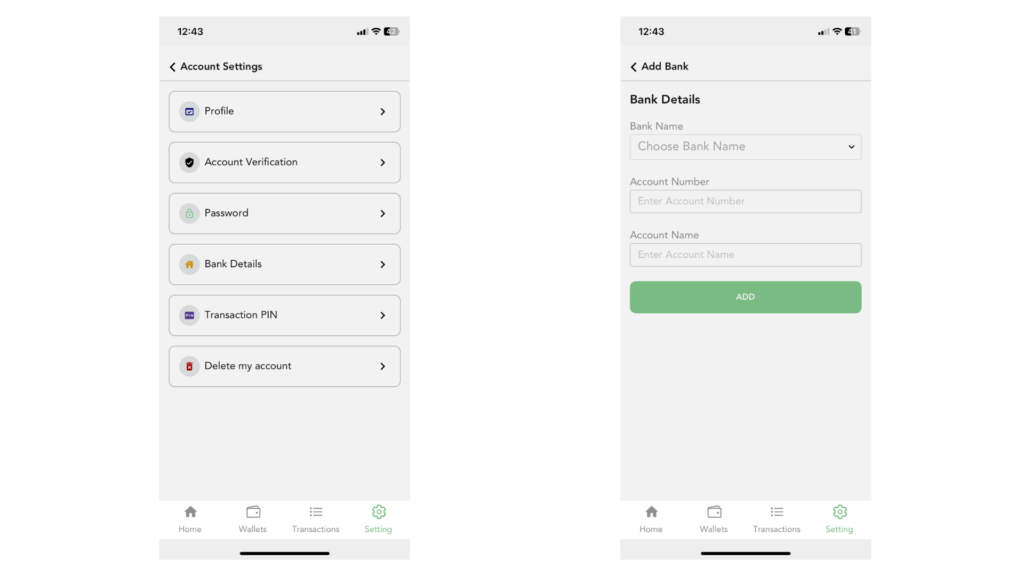
On the next page, you will see a form that you need to fill out with your correct bank information. Make sure that the bank details you enter match the information you used for your Snapiro account. This helps the system verify your identity and ensures smooth transactions.
After you have carefully filled out the form, tap on the “Add” button. This will successfully save your bank account to your Snapiro profile.
This is how you can add your bank account to the Snapiro mobile app

